Backtime help
How to build a rundown, write the scripts, and run the prompter on show day. Can't find what you need? Email support@backtime.studio.
Getting started
Backtime keeps your rundown, scripts and teleprompter in one place, and everyone with the rundown open sees changes the moment they're made.
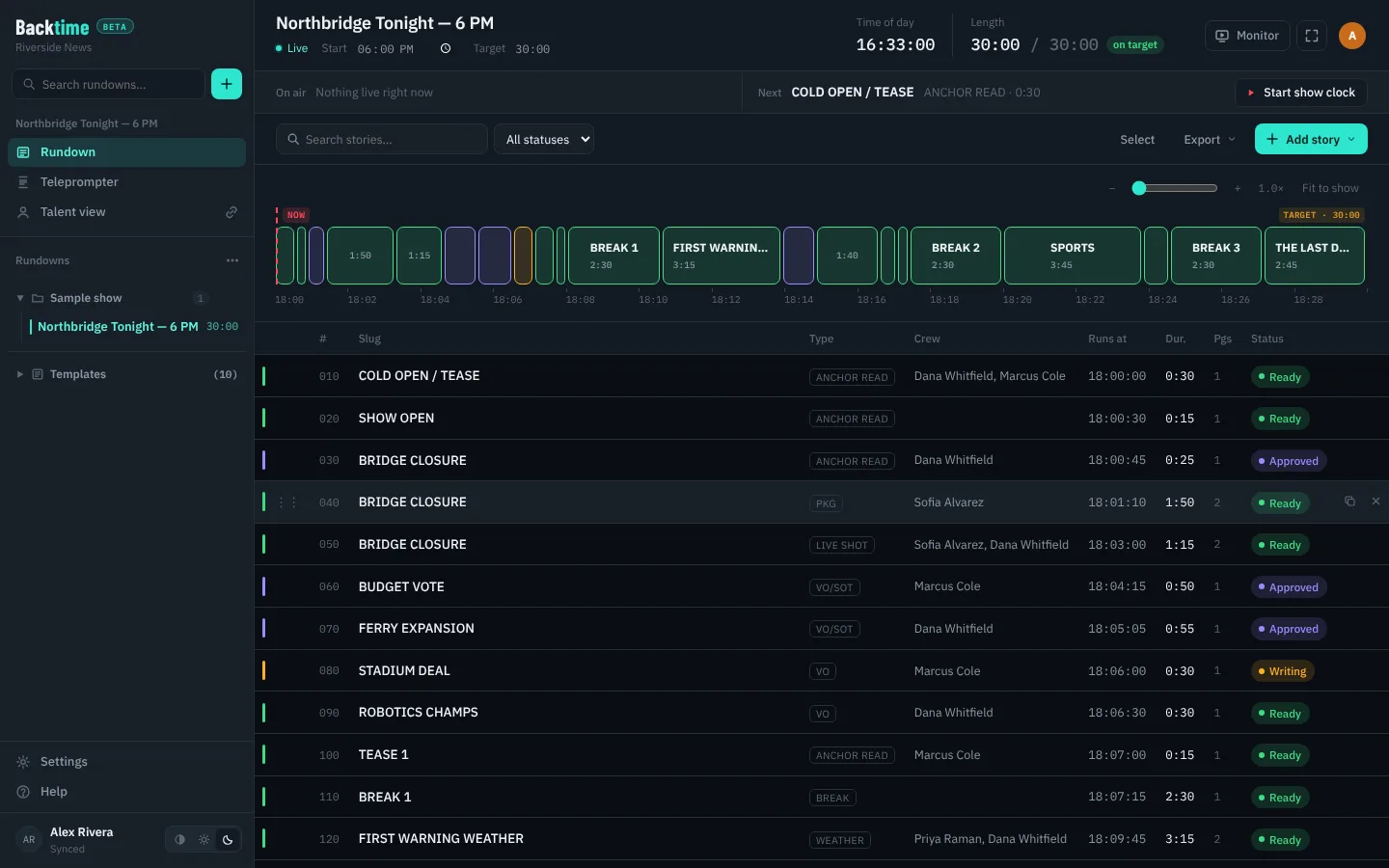
- Create a rundown. Click + next to the search box at the top of the sidebar, give it a name, and pick a format (for example News broadcast, Video / podcast show or Live music set). The format decides which story types and quick-add templates you get.
- Add stories. Use Add story in the rundown toolbar. Each story is one segment of the show, with a slug, a duration and a script.
- Invite your crew. Open Settings at the bottom of the sidebar and invite teammates by email.
- Go to air. Open the teleprompter on any story, and press Start show clock when you're live.
Rundowns
A rundown is the running order for one show. Your rundowns are listed in the sidebar.
Organizing
- Search rundowns with the box at the top of the sidebar.
- Use a rundown's ⋯ menu to Rename, Move to folder or Archive it. Archived rundowns are hidden from the list but can be restored from ··· › Archived rundowns.
- ··· › New folder groups rundowns, for example by show or by week.
- Select rundowns lets you delete several at once.
Templates
If you run the same show every day, build it once and use Export › Save as template. The stories are saved to the Templates list at the bottom of the sidebar, ready to reuse in new rundowns.
Exporting and sharing
- Export › Export PDF makes a PDF of the running order, the scripts, or both. On Team and Studio plans it carries your own logo and colors.
- Copy as text puts the running order on your clipboard for email or chat.
- Save to file downloads the rundown; ··· › Open from file loads it back in.
Timeline
The bar above the story table shows the whole show against its target length. Use the zoom slider or Fit to show to see more or less of it.
Stories & scripts
Click any story in the table to open its panel, where you write the script and set its details.
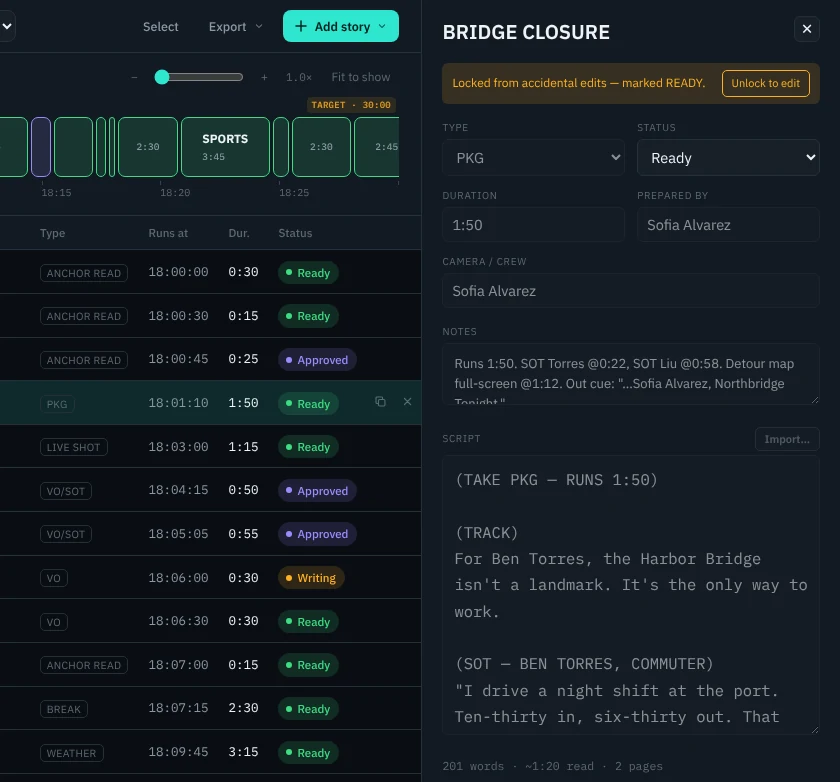
- Slug is the story's short name, used everywhere: the table, the prompter and the talent view.
- Duration drives the timing. Backtime works out when each story runs and how far over or under the show is.
- Crew notes are for the team and don't appear in the prompter.
- Drag stories in the table to reorder them. Everyone sees the new order instantly.
Status and locking
Each story moves through these statuses:
Once a story is Ready (or later), its script is locked so it can't be changed by accident. Click Unlock to edit in the story panel if you really need to change it, then Lock again. Use the status filter in the toolbar to see, for example, only stories still being written.
Running the show
Backtime tracks what's on air and whether you're running long or short.
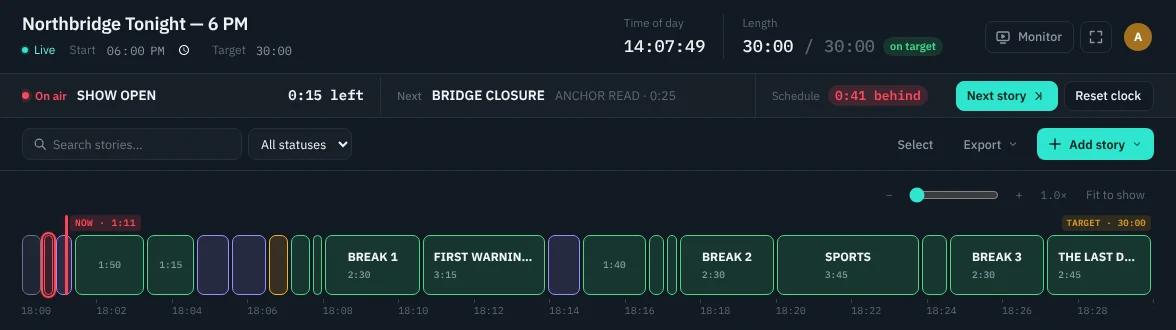
- Press Start show clock above the rundown when you go live. The first story is marked On Air.
- Press Next story (or N) as each segment ends. The current story is marked Aired and the next one goes On Air.
- The On air / Next bar shows what's live, what's coming up, and how far ahead or behind the show is.
- After the show, Reset clock clears it for the next run.
Teleprompter
The prompter reads straight from the scripts in your rundown. There's nothing to copy or paste.
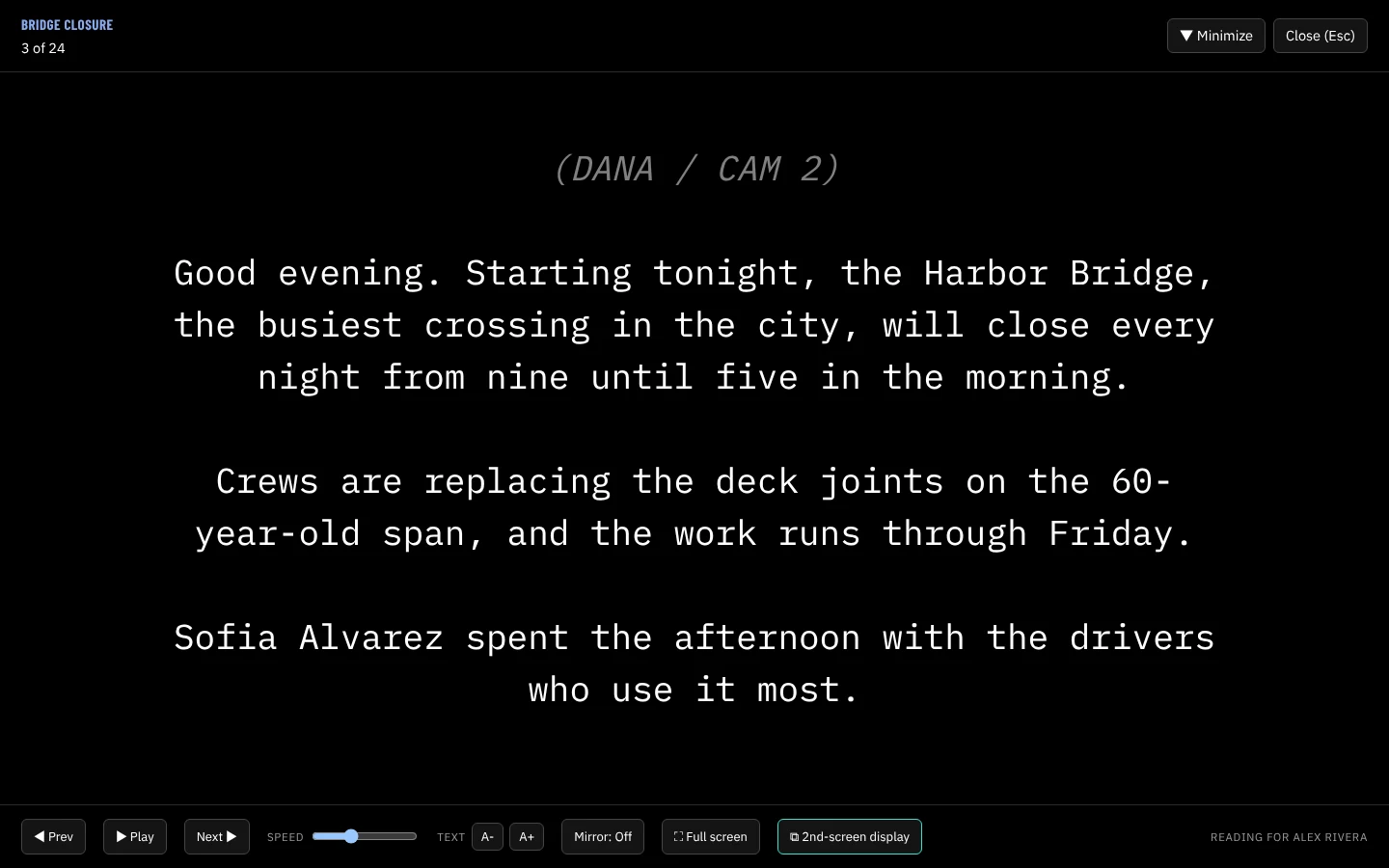
- Open it from Teleprompter in the sidebar, Open in Prompter in a story's panel, or by selecting a story and pressing P.
- Space starts and stops scrolling. ← and → jump to the previous or next story. F toggles full screen and Esc closes it.
- Speed, text size and mirroring (for a glass prompter) are adjustable while it runs. Your organization's defaults are set in Settings.
Second screen for talent
Click 2nd-screen display in the prompter to get a link, then open it on the monitor, tablet or laptop in front of talent. That device needs to be signed in to your team's Backtime. It follows the operator's prompter, so you control scrolling from your own screen.
Minimize keeps the second screen running while you go back to editing the rundown.
Talent view
A read-only view for whoever is on camera: the running order and their scripts, nothing else.
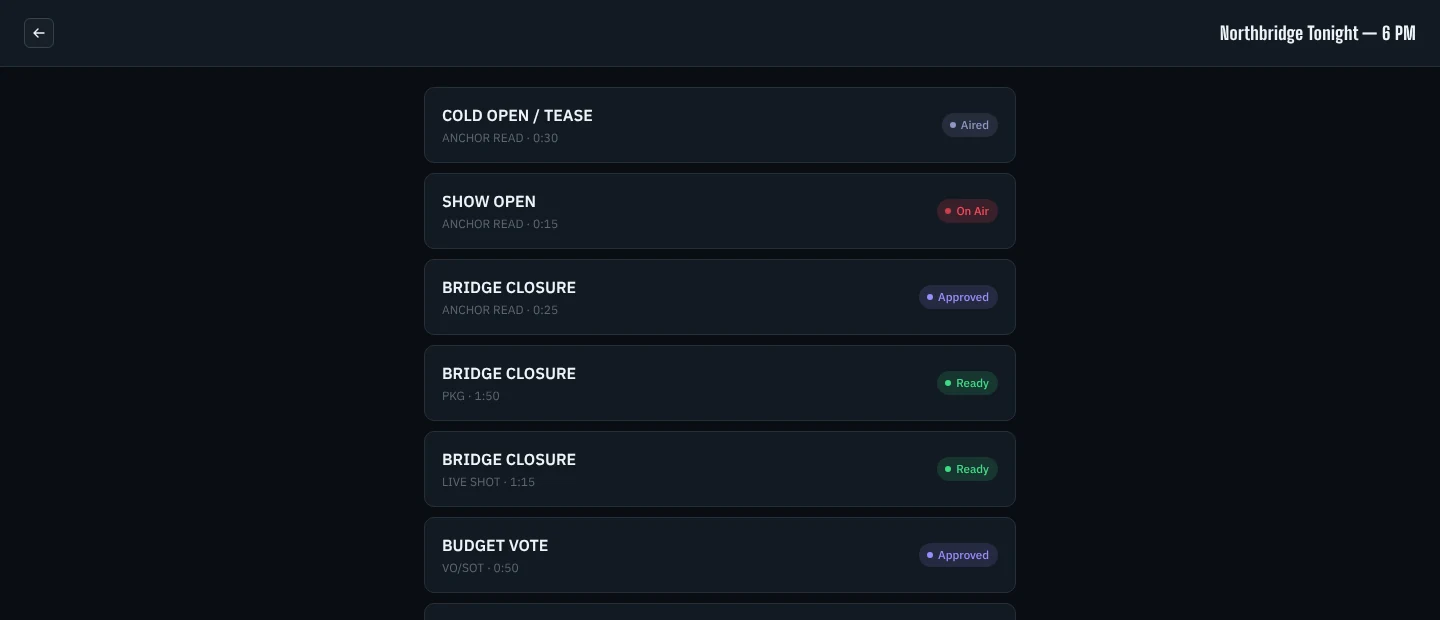
- Click Talent view in the sidebar to see what talent sees.
- Click the link icon next to it to copy a talent link and send it to their device. The device needs to be signed in to your team's Backtime.
Live monitor
Watch your program feed right over the rundown, so the producer never has to look away.
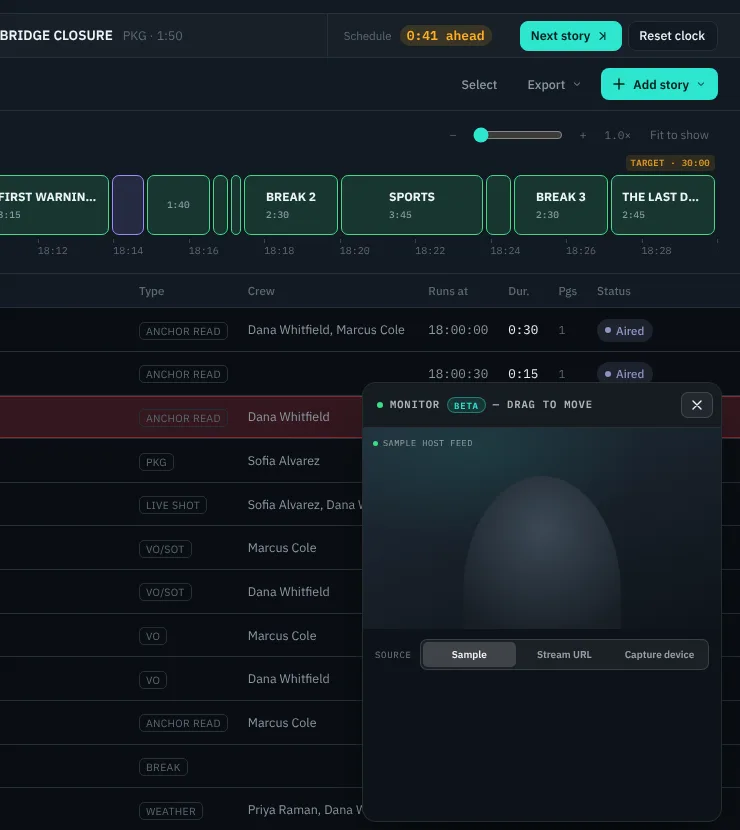
- Open it with Monitor at the top right of a rundown.
- Choose a Stream URL (YouTube, Twitch, Vimeo, an .m3u8 or any embeddable link) or a Capture device such as a USB capture card or webcam. Your browser will ask for camera permission the first time. Sample shows a test picture so you can try it out.
- Drag the panel’s header to move it, and any edge or corner to resize it.
Team & settings
Everything about your organization lives in Settings, at the bottom of the sidebar.
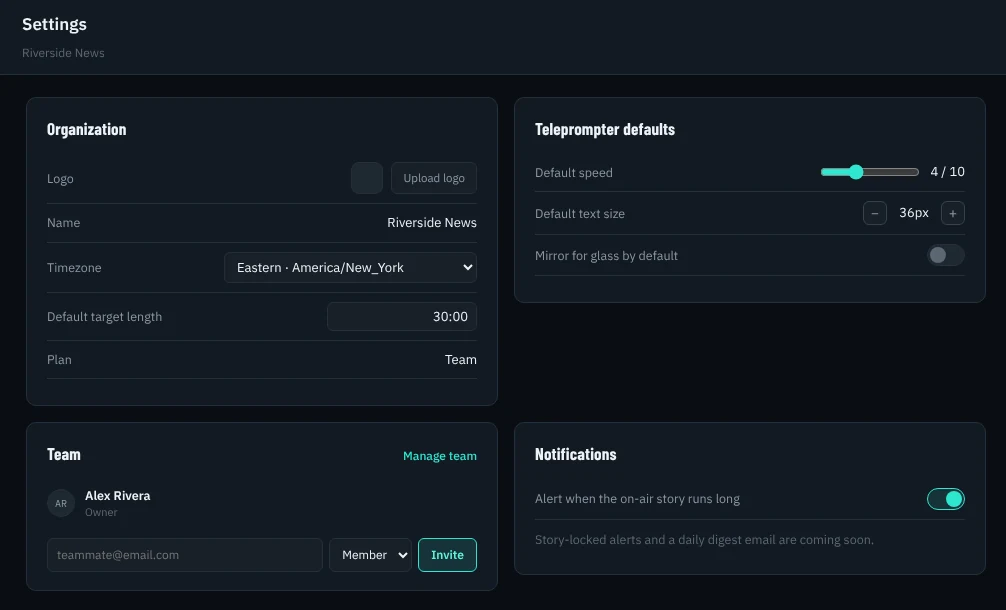
- Team: invite people by email as a Member or Admin. Admins can manage the team, resend or revoke invites, and reset a teammate's password.
- Show defaults: timezone, default target length, and teleprompter speed, text size and mirroring. New rundowns pick these up automatically. Only an owner or admin can change them.
- Branding: on Team and Studio plans, upload your logo, which appears in the sidebar and on PDF exports.
- Your account: click your avatar at the top right and choose Your account to change your name or password, or turn on two-factor authentication.
- Theme: the three buttons next to your name switch between Auto, Light and Dark.
Keyboard shortcuts
Shortcuts are ignored while you're typing in a field.
Rundown
| P | Open the selected story in the teleprompter |
| N | Next story (once the show clock is running) |
| F | Toggle full screen |
| Esc | Close the story panel |
Teleprompter
| Space | Start or stop scrolling |
| ← → | Previous or next story |
| F | Toggle full screen |
| Esc | Close the prompter |
FAQ
Do my teammates need to refresh to see changes?
No. Everyone with a rundown open sees edits, reorders and status changes as they happen, and you can see who else is viewing.
Can other organizations see my rundowns?
No. Every organization has its own isolated workspace. Rundowns, folders and templates are only visible to your team.
Why can't I edit a story's script?
It's marked Ready, On Air or Aired, which locks it against accidental changes. Click Unlock to edit in the story panel.
The second-screen prompter or talent link asks me to sign in.
Those links open your team's own Backtime, so the device has to be signed in with an account on your team. Sign in once on that device and the link will open straight to the prompter or talent view.
The live monitor can't see my capture card.
Allow camera access when the browser asks. If you said no earlier, click the camera icon in the address bar to allow it, then choose the device again. Close any other app (such as OBS) that might be holding the card.
I can't invite another teammate.
Each plan has a seat limit: 1 on Solo, 10 on Team and 30 on Studio. Remove someone you no longer need in Settings, or email us to change your plan.
How do I delete my account or organization?
Email support@backtime.studio and we'll take care of it.
No help topics match that search. Try another word, or email support@backtime.studio.
Still stuck? Email support@backtime.studio and tell us what you're trying to do.